My lovely coworker found this amazing app for annotating, and I have to share!
Tiny pdf is a FREE app that allows students to annotate pdfs.
My
students are all logged into one Dropbox account at the same time on their Ipads.
This way, they can all see what I share with them, such as a pdf! Tiny
pdf allows you to connect a Dropbox so that any pdf in a Dropbox folder
will appear in the app.
This week, we started reading a
Science A-Z book in tiny pdf so that we could use our think marks to
annotate. First, we opened tiny pdf. Then we connected our Dropbox account by following the prompts and logging in using our classroom email and password. Each student had to type in the email and password, but it did not take too long! Once students are logged in, just like in Dropbox, they stay logged in. No need to ever log in again! As you can see, it is also possible to upload a Google Drive account as well.
After our folders appeared, we opened the Science A-Z book in the app and wrote on it! The app saves documents that are being annotated, so my students can go back and add more notes and think marks while they read. They absolutely LOVED it, and their comprehension sky-rocketed after reading just one section. We had a great discussion, and they cannot wait to keep reading and annotating more in all subjects!
Showing posts with label apps. Show all posts
Dropbox on the I Pad
Monday, January 26, 2015
Organizing documents for students is difficult using real paper, let
alone documents on an I Pad! An easy way to organize everything is to
use the free Dropbox app. Simple, but very effective to share items with
students. Dropbox is also free to use on any computer or phone.
ALL of my students are logged into one Dropbox account. The first day, they opened the app, typed in a classroom Gmail account that I created, typed in a password that I created, and they were instantly in the classroom Dropbox. The I Pad does not log out of this, so each time they open the Dropbox app, they are still logged in to see what is there!
This week my class is reading a book called "Alice's Birthday Cake" on the I Pad. This book is from Reading A to Z. Our grade level has a subscription to Reading A to Z, where we can find endless books and lessons to teach Common Core Reading Strategies. This week my class is thinking about cause and effect while reading this book.
To put this in a Dropbox folder for my students, I first open the book on the Reading A to Z website. It is a pdf file that comes up when I click on "Print single sided." Once it is open, I tap the top of the book, and this pops up:
I click, OPEN IN, and I can open it in Dropbox! All I have to do is tap on "Open In Dropbox" (I can also open it in other apps as well if I wanted to save it somewhere else)
I click on the folder I want to save it in, and ALL of my students can see it! It is wonderful because whenever I share any document in the classroom Dropbox, everyone can see the documents.
This is how we are all able to read books on the I Pad easily and quickly throughout the week. I also have folders for Math, Writing, Science, and Social Studies so that I can share documents in these subjects as well. We are loving Dropbox, and we are becoming more confident with our I Pads each day!
ALL of my students are logged into one Dropbox account. The first day, they opened the app, typed in a classroom Gmail account that I created, typed in a password that I created, and they were instantly in the classroom Dropbox. The I Pad does not log out of this, so each time they open the Dropbox app, they are still logged in to see what is there!
This week my class is reading a book called "Alice's Birthday Cake" on the I Pad. This book is from Reading A to Z. Our grade level has a subscription to Reading A to Z, where we can find endless books and lessons to teach Common Core Reading Strategies. This week my class is thinking about cause and effect while reading this book.
To put this in a Dropbox folder for my students, I first open the book on the Reading A to Z website. It is a pdf file that comes up when I click on "Print single sided." Once it is open, I tap the top of the book, and this pops up:
I click, OPEN IN, and I can open it in Dropbox! All I have to do is tap on "Open In Dropbox" (I can also open it in other apps as well if I wanted to save it somewhere else)
I click on the folder I want to save it in, and ALL of my students can see it! It is wonderful because whenever I share any document in the classroom Dropbox, everyone can see the documents.
This is how we are all able to read books on the I Pad easily and quickly throughout the week. I also have folders for Math, Writing, Science, and Social Studies so that I can share documents in these subjects as well. We are loving Dropbox, and we are becoming more confident with our I Pads each day!
Apps for the I Pad
Tuesday, January 20, 2015
With any piece of technology in the classroom, it is all about how it is used to ENHANCE and TRANSFORM learning that is already occurring. The SAMR model is a great way to push yourself when designing lessons using technology:
While using Notes on the I Pad, as I previously posted, to jot down notes while reading is just a "Substitution," there are many ways to move up levels on the SAMR model with only a few apps!
With most of these Apps listed above, "Redefinition" can occur! It is all about how you use the apps that you have. Buying endless games is not really necessary when the internet is available for games. I am sure there will be more apps that are explored as the year goes on, but this basic list is really all my students will need to enhance and transform their learning using I Pads. More to come on how this goes when we get our apps!
Notes on the I Pad
Tuesday, January 13, 2015
Although a list of apps was submitted to the Tech Department by our team, they are not on our I Pads yet. Luckily, there is much that can be done with basic apps.
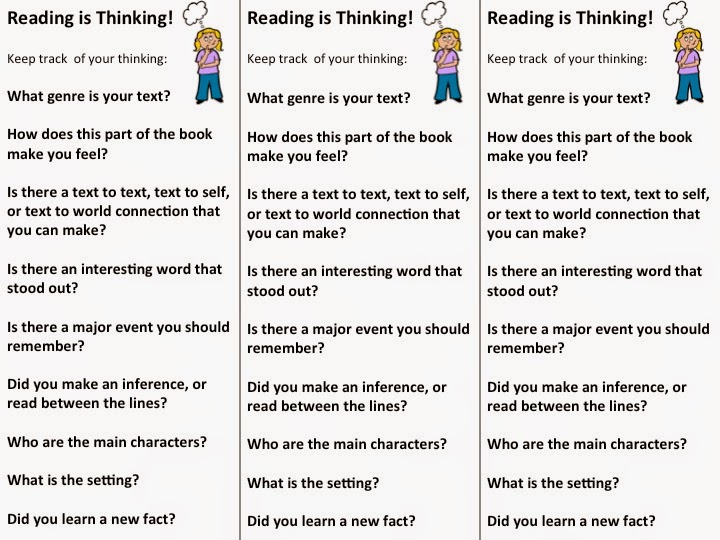
Since the beginning of the year, I have been teaching my students how to track their thinking while reading. They have been using post it notes to jot down things that they are thinking about while reading.
Click the image above for free bookmarks to help track thinking!
Really any thinking and jotting down of thoughts is promoted while reading, and my students are becoming excellent at doing this during their "read to self" and "read to someone" time. The problem is this:
Post its everywhere! Some students LOVE it, and I would not change this for the world. Some though would rather write down their thoughts digitally. This is where Notes on the I Pad comes in! They can track their thinking to their hearts' content without killing so many trees. SIMPLE, but very effective, and my students love it.
At the end of Reader's Workshop time (I use the Daily Five routines), we always share post its as a class, from the morning of reading, writing, and word work. On the I Pad, they can now share their writing digitally very easily using my document camera or connecting their I Pads to the Smart Board.
Example of a student note:
Remember: Reading is Thinking!
Subscribe to:
Posts (Atom)